> For the complete documentation index, see [llms.txt](https://docs.truvera.io/llms.txt). Markdown versions of documentation pages are available by appending `.md` to page URLs; this page is available as [Markdown](https://docs.truvera.io/truvera-workspace/create-a-schema.md).
# Create a schema
### Set up a credential schema
Select **Schemas** and click **Create schema**
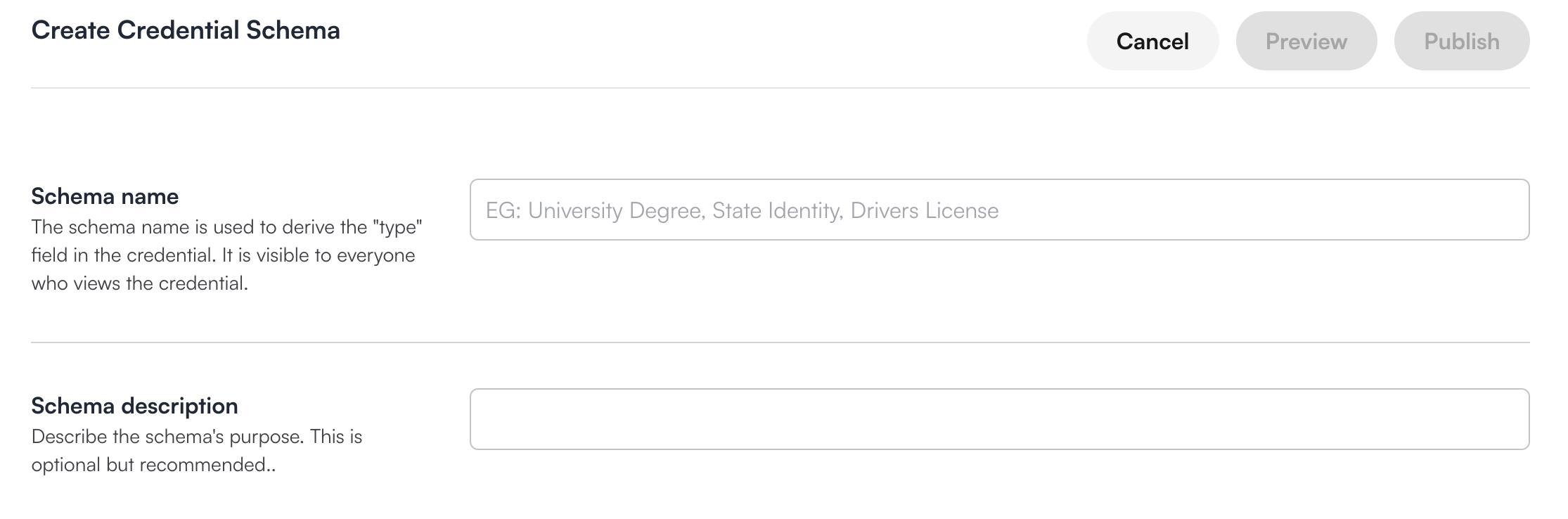
Add a name for the schema and a description.
In Credential attributes, add the type of data you want to appear on the schema. You can do this in two ways:
a) By manually setting up the information you want to appear
b) Importing an existing credential template from another source
### Manually add credential attributes
Click **Create manually**.

You can choose what format the field will appear in and which fields are required or optional.
{% hint style="info" %}
You don’t need to add an Issue Date and Expiry Date field because these fields will automatically appear on all templates.
{% endhint %}
Once you’ve added all the fields, click **Publish**. All credential schemas will be listed on this page when you select Schemas from the menu.
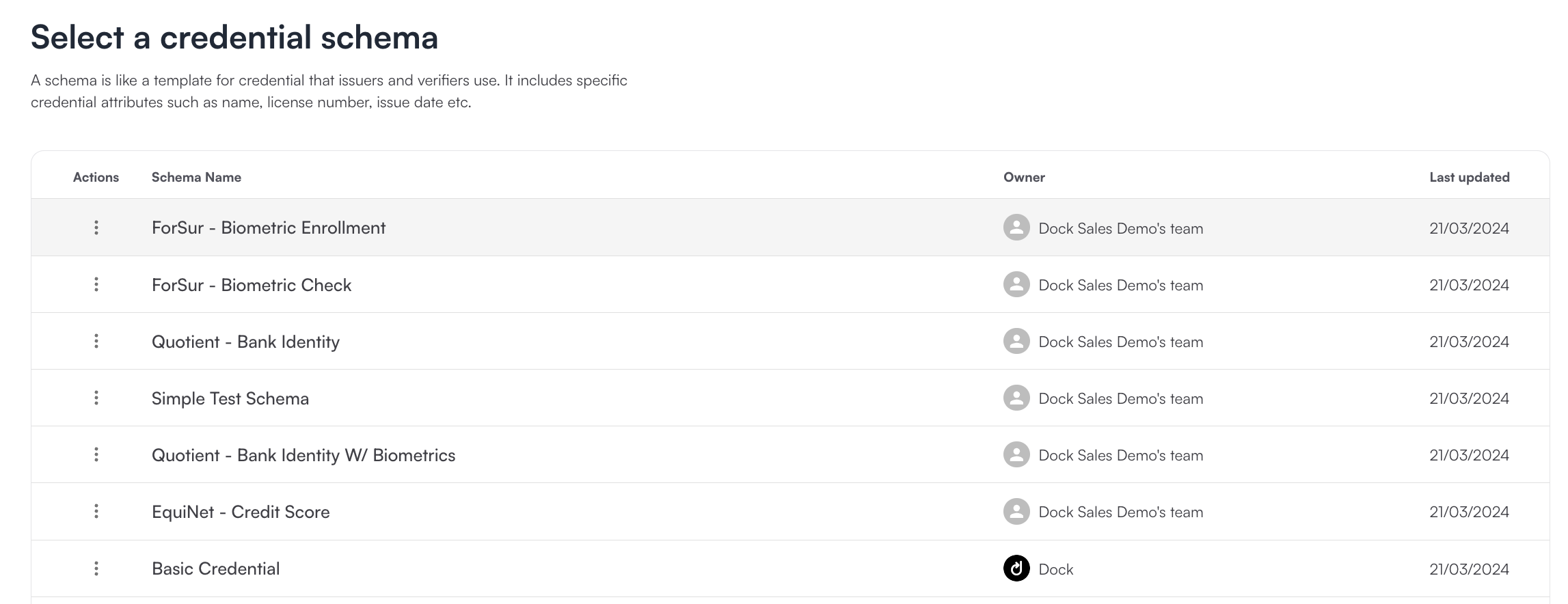
You can also see your new credential templates added to the pre-built templates. So whenever you issue a credential, you will be able to choose a template from this list.
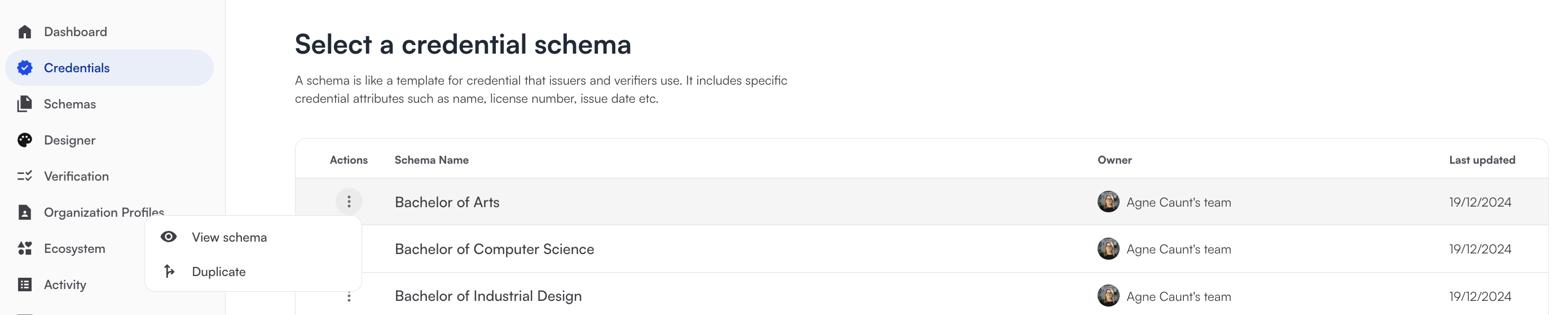
Click the Actions menu and select **Preview** to see the attributes that are included in the credential schema or Duplicate to edit the schema.
The **Issue Date** and **Expiration Date** are default attributes that will appear on every template if you create the template manually.

### Add credential attributes by importing an existing credential schema
You can import an existing credential schema into Truvera.
{% hint style="success" %}
This feature is very useful when needing to move schemas from test mode into production.
{% endhint %}
Paste the schema URL or JSON in the Schema Import pop up and select Import Schema

Double check to make sure that the correct data format is selected for each data field. Add or remove the fields as necessary and select Publish once ready.
### Edit a credential schema
Go to the schema you want to edit, click on the three dots, and select Duplicate.
Update the schema Name so you can tell the difference between this updated version and the original one. Once you’ve made all of your edits, go to the top of the page and select Publish.
### View a credential schema
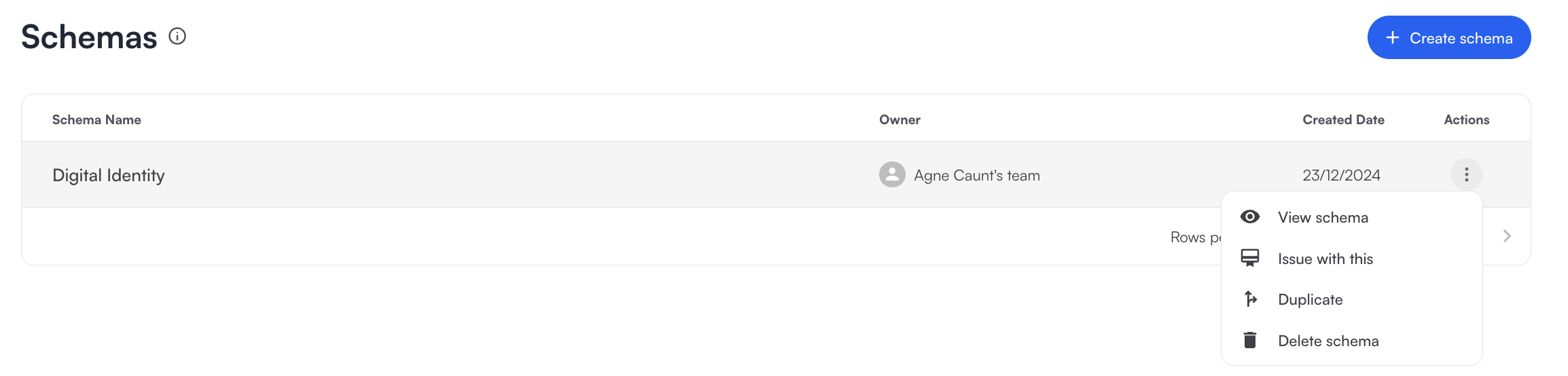
To see the attributes included in a particular schema your can click on the three dots of the credential you want to view, and click **View schema**.
### Delete a credential schema
Go to Schemas, click on the three dots of the schema you want to delete, and click **Delete schema**.
---
# Agent Instructions
This documentation is published with GitBook. GitBook is the documentation platform designed so that both humans and AI agents can read, navigate, and reason over technical content effectively. Learn more at gitbook.com.
## Querying This Documentation
If you need additional information that is not directly available in this page, you can query the documentation dynamically by asking a question.
Perform an HTTP GET request on the current page URL with the `ask` query parameter, and the optional `goal` query parameter:
```
GET https://docs.truvera.io/truvera-workspace/create-a-schema.md?ask=&goal=
```
`ask` is the immediate question: it should be specific, self-contained, and written in natural language.
`goal` is optional and describes the broader end goal you are ultimately trying to accomplish on behalf of the user. GitBook uses it to tailor the answer towards what is most useful for that goal.
The response will contain a direct answer to the question and relevant excerpts and sources from the documentation.
Use this mechanism when the answer is not explicitly present in the current page, you need clarification or additional context, or you want to retrieve related documentation sections.